
Tableau Server Management Add-on – Resource Monitoring Tool has 2 components. RMT Master & RMT Agent. First, you need to install the RMT Master Server, install guide available here.
Then you need to install RMT Agent in all Tableau Server that you want to monitor their performance in a near real-time manner. I’m following tableau documentation here and share all the screenshots below so you know what to expect before trying it yourself. If you have a distributed Tableau server cluster with many nodes, then you need to install RMT Agent one by one in all the nodes.
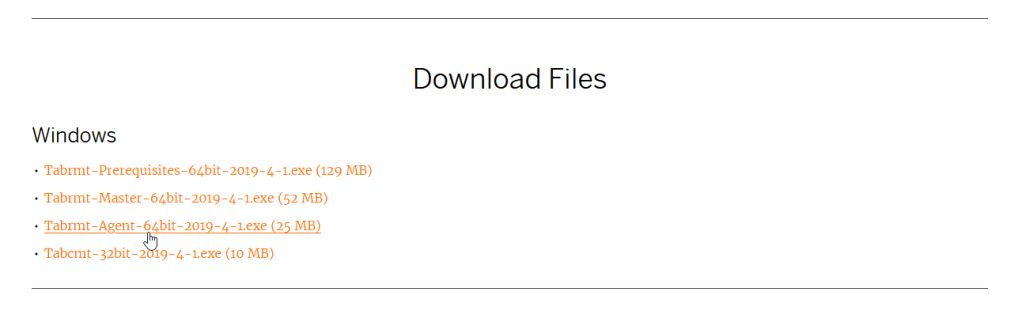
Download RMT Agent installer
Download it from here.
Download Agent bootstrap configuration file
Login to RMT Master Server

Go to Admin -> Configuration Menu

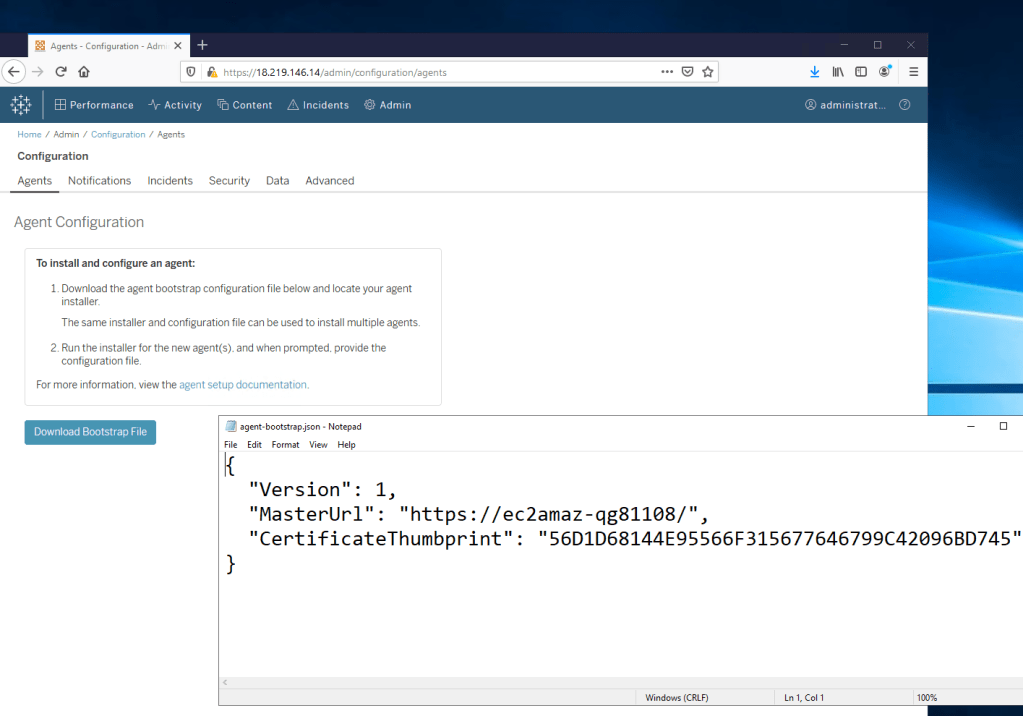
Click Agents menu and “Download Bootstrap File” button.

The bootstrap file (agent-bootstrap.json) content is like below. The default for MasterUrl is using RMT Master server Hostname.
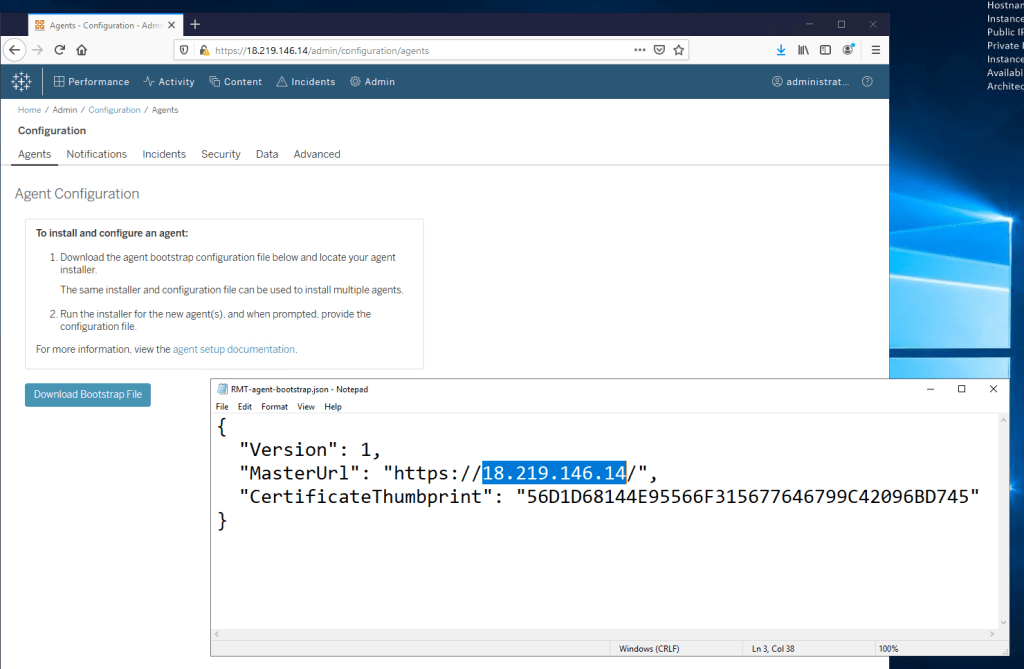
Hostname can cause error if the DNS server is not being setup properly, so i suggest to change it into IP Address. I edit it using Notepad and change the Hostname to IP Address to prevent Hostname errors. Save it and copy it to the tableau server that you want to install the Agent.
Open access to Tableau Repository
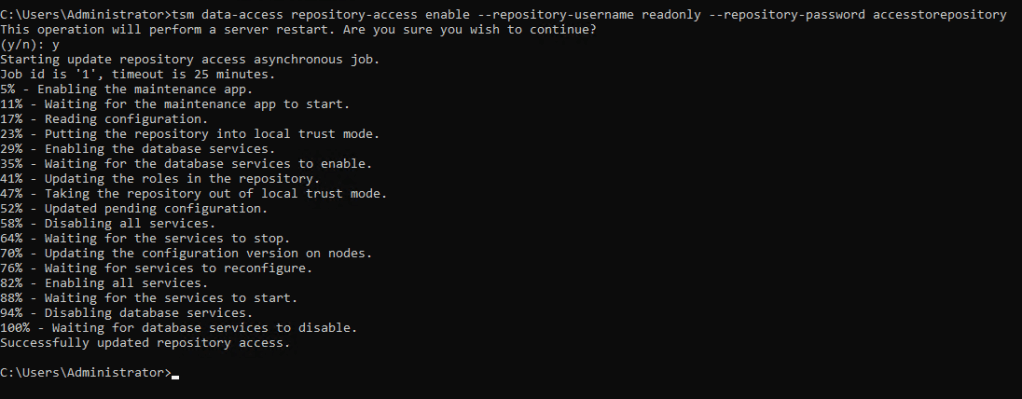
RMT Agent need to collect performance data from Tableau Repository database. So we need to open the access to tableau repository postgresql database.
Open Windows Command Prompt terminal with “Run as Administrator”. And type these tsm commands to enable repository access using “readonly” user. You need to decide your own password and put it after –repository-password option.
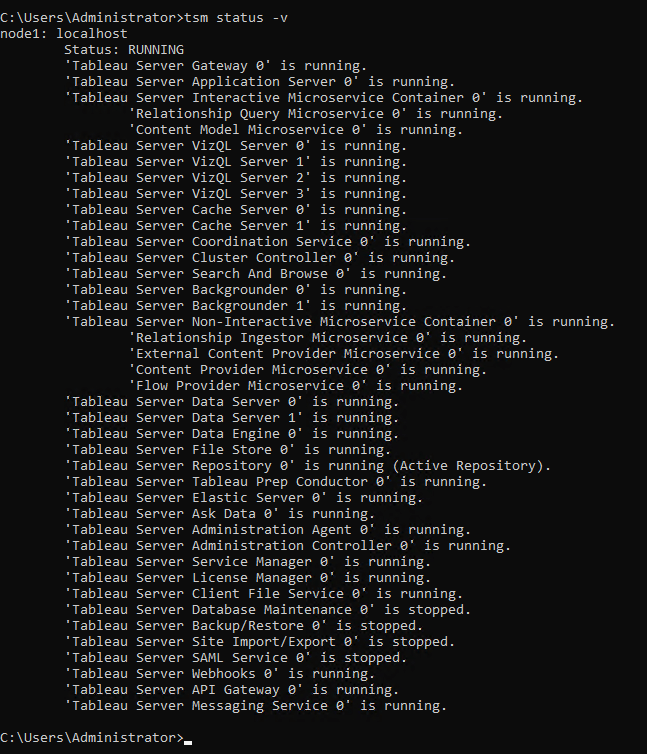
Restart tableau server and make sure Status = RUNNING.
Install RMT Agent
In the Tableau Server that you want to monitor, double click the RMT installer.
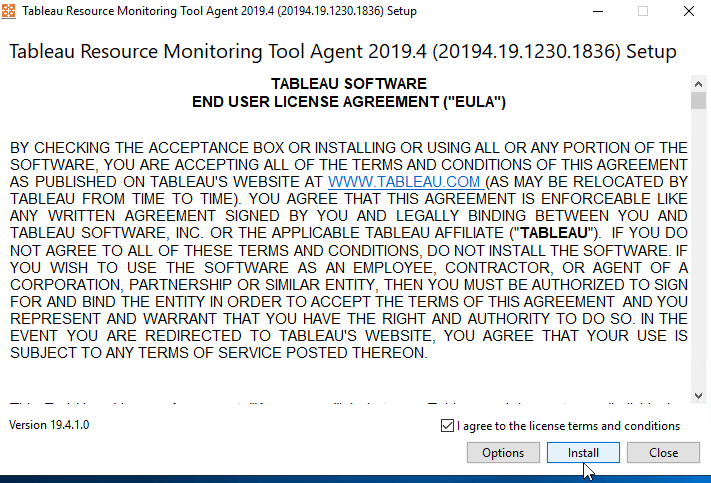
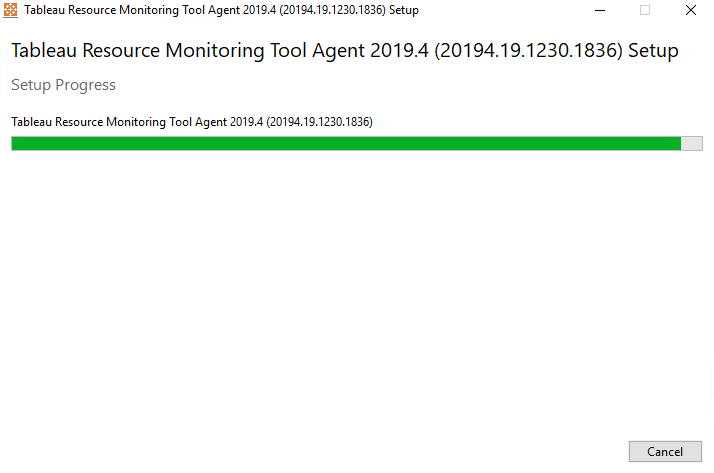
The installer will open a command prompt terminal and continue the installation processes.
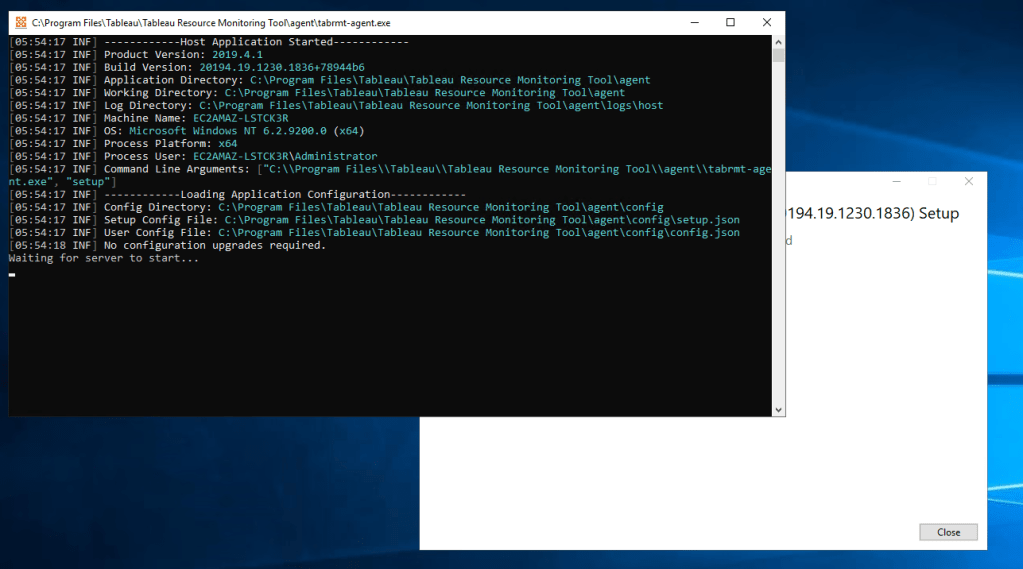
Then this command prompt terminal will open your default Web Browser for you to input some information.
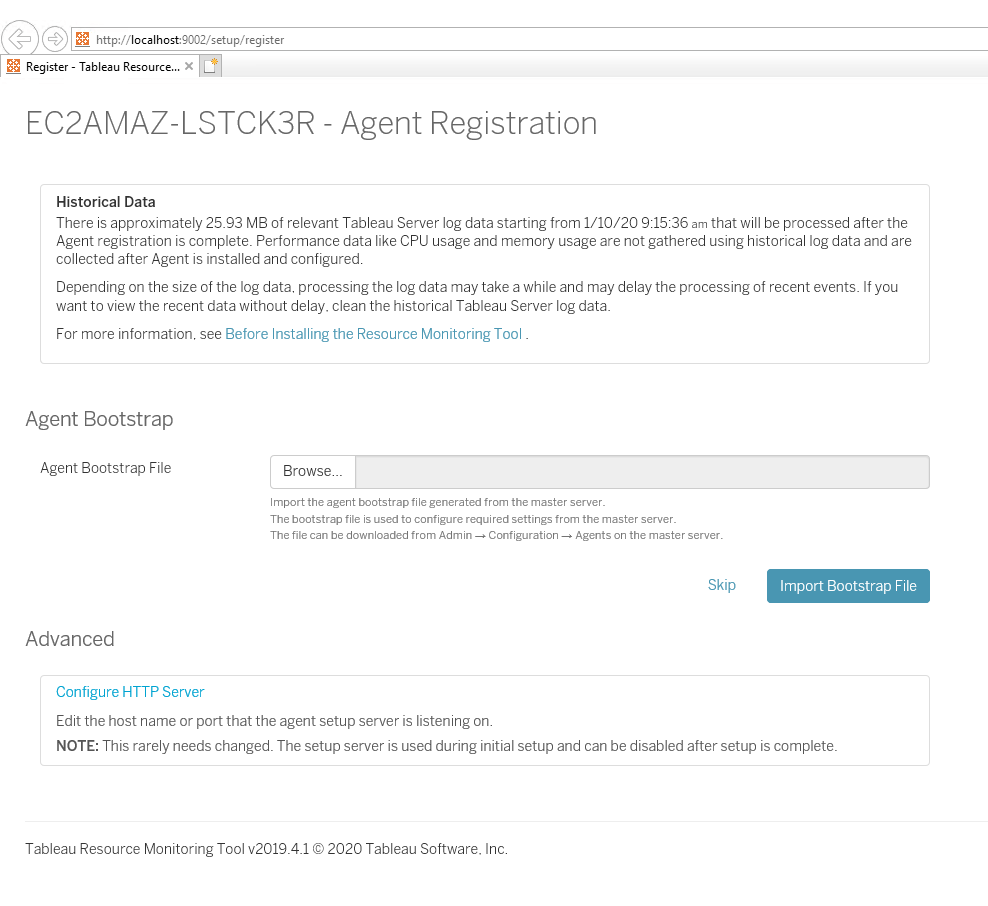
Click Browse and choose the Agent Bootstrap Configuration file you copied to this server previously (RMT-agent-bootstrap.json) and click “Import Bootstrap File” button.
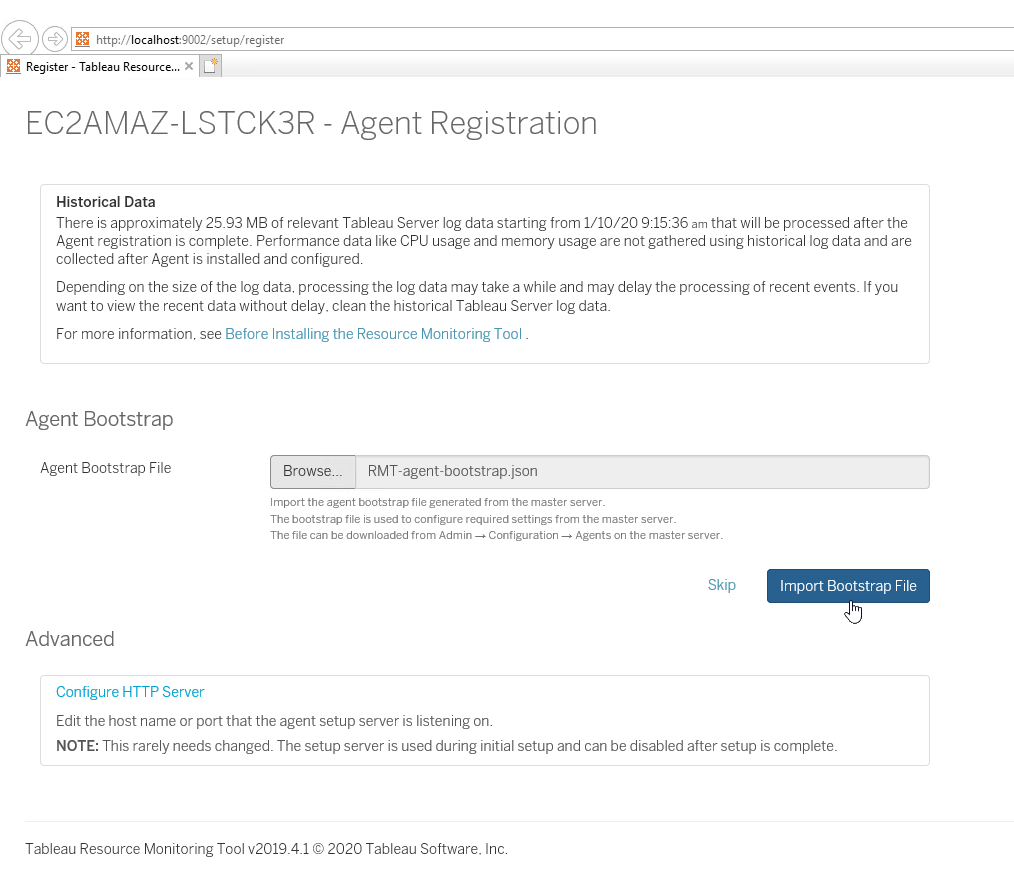
The installer will read the agent configuration bootstrap file, autofill the information to the next Agent Registration webpage.
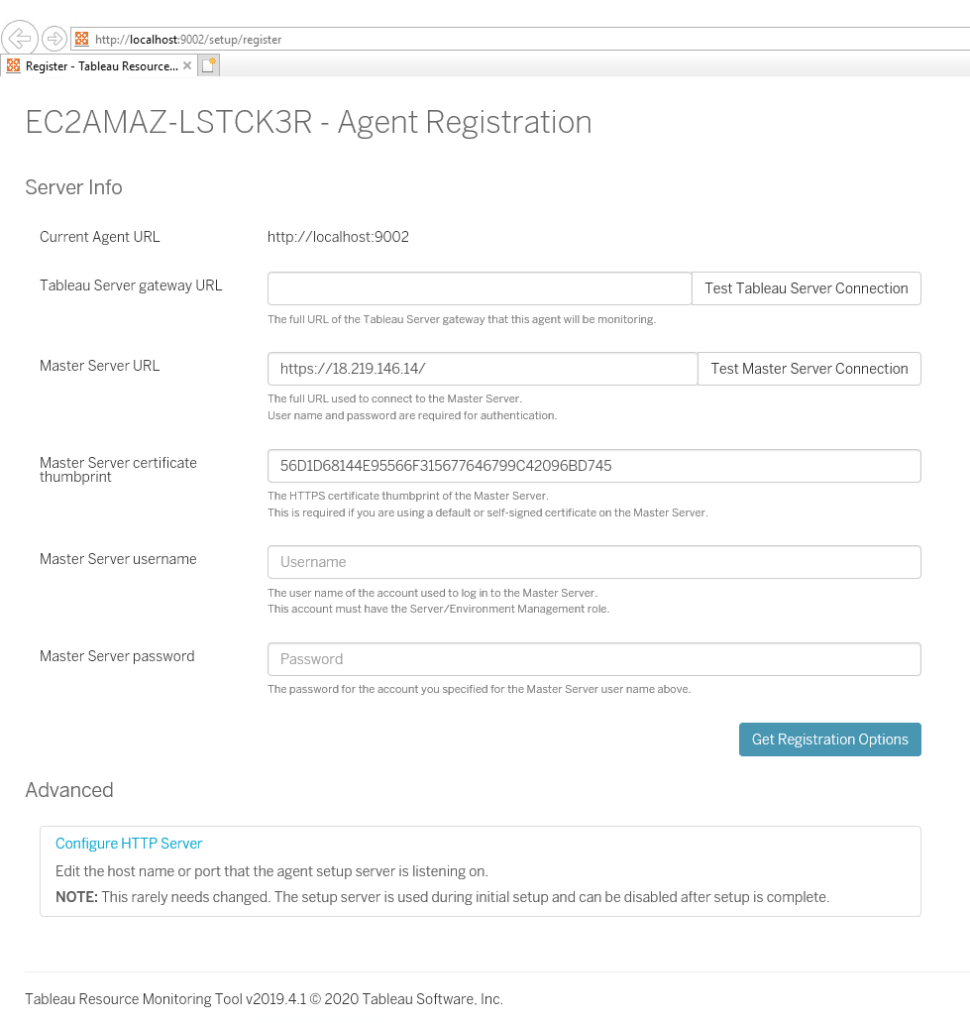
Next, fill in your Tableau Server gateway URL and click “Test Tableau Server Connection”.
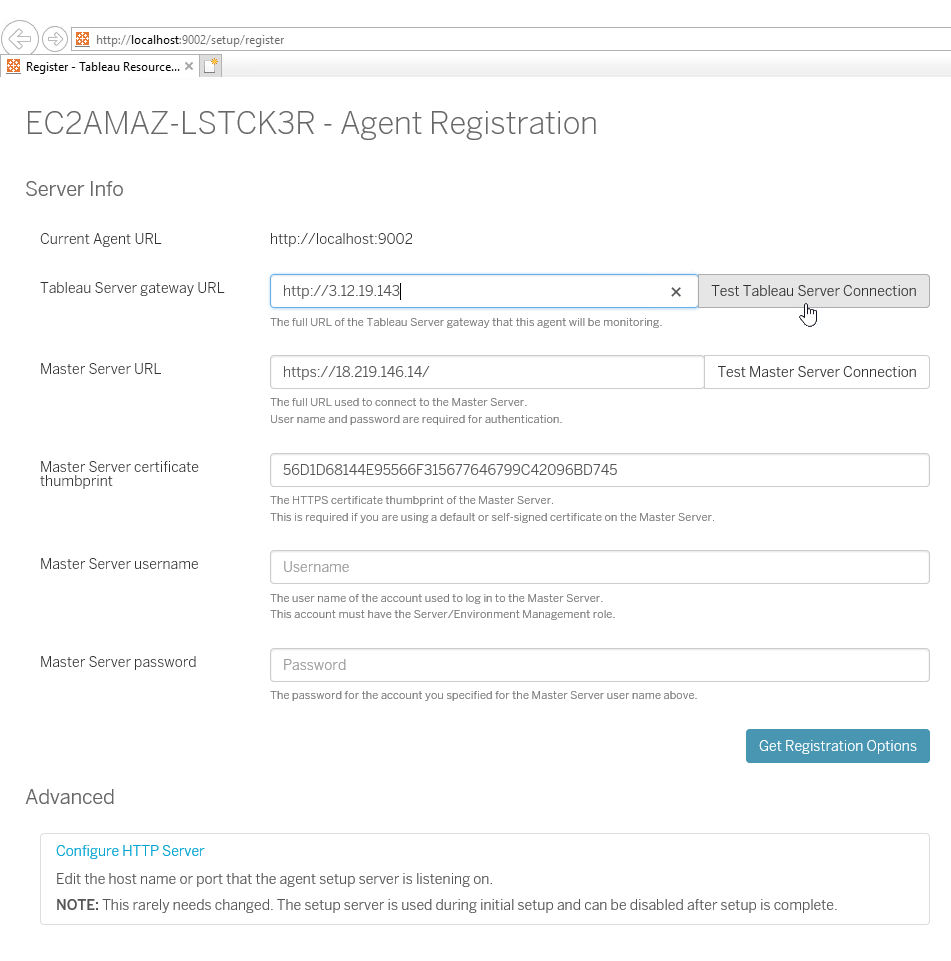
When successful then click “Test Master Server Connection” button.
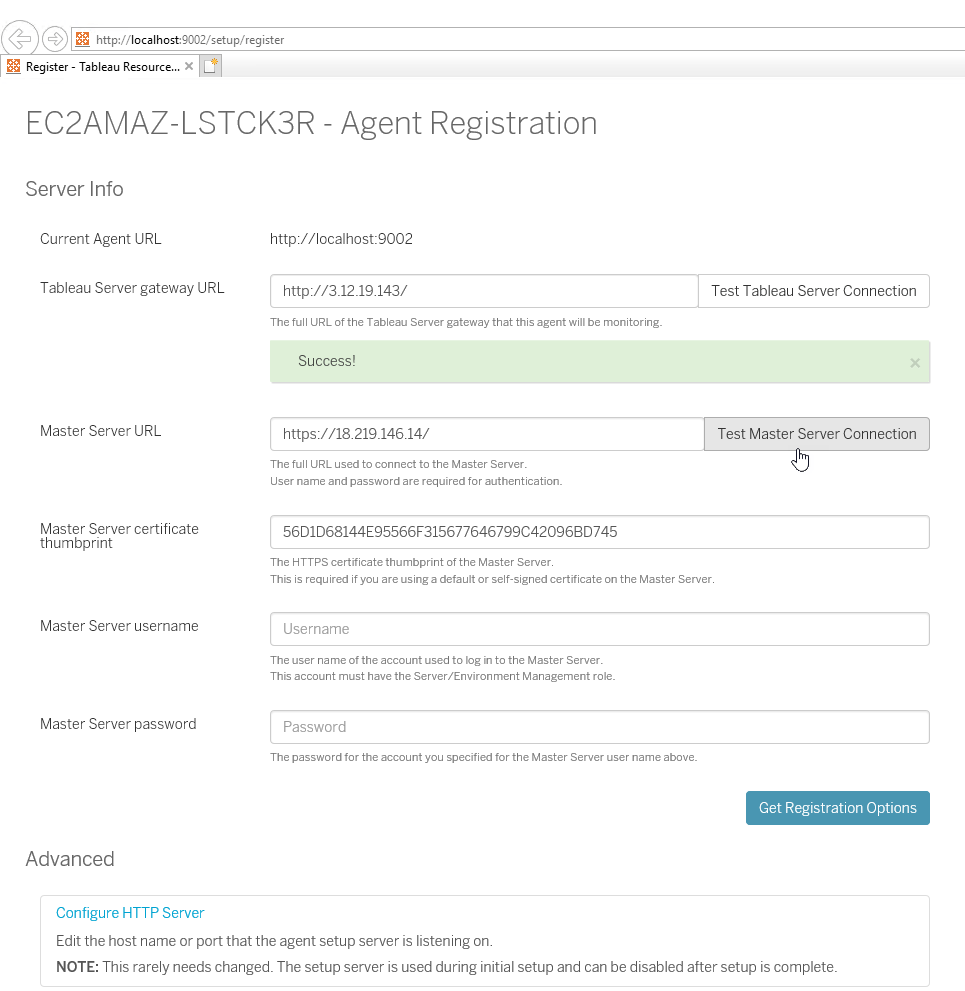
When successful, enter the Master Server username & Master Server password and click “Get Registration Options” button.
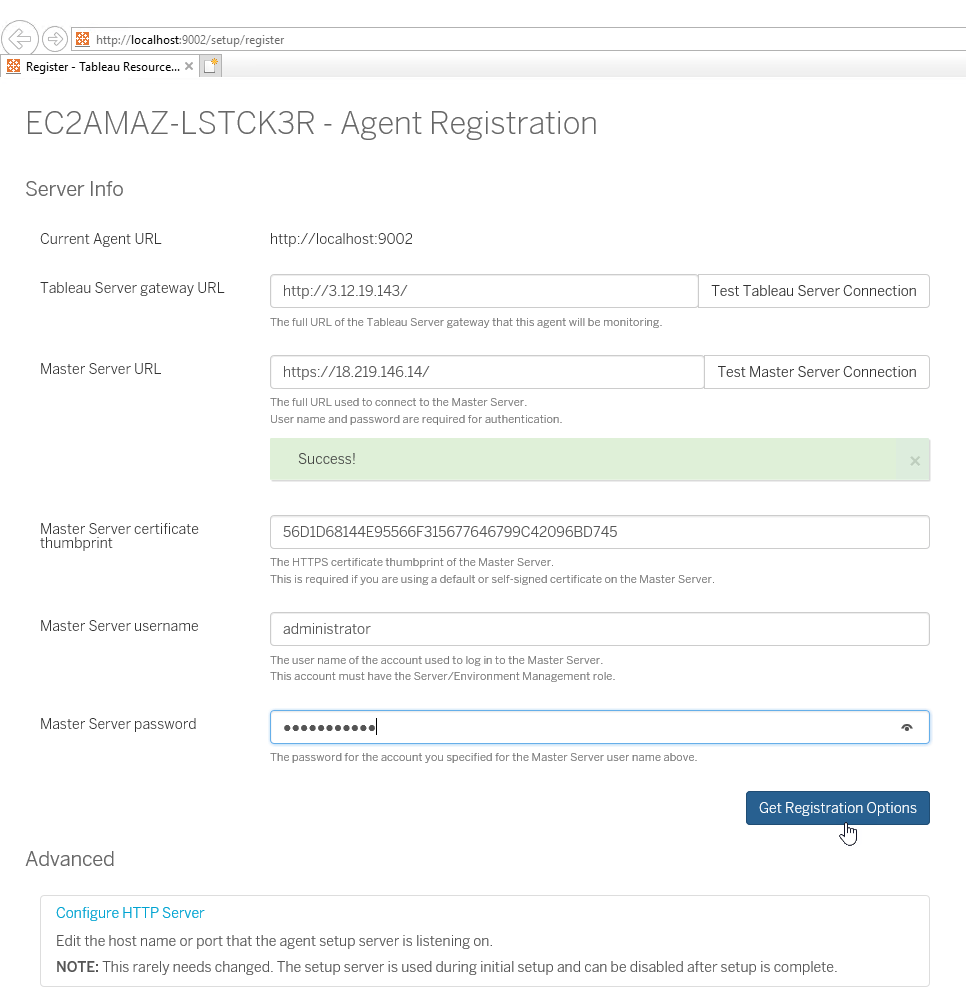
You will continue to the next webpage with some information already filled in. You have option to Enable TLS and input the Certificate Host Name. I don’t need both of them so i just click “Test Message Queue Connection” button.
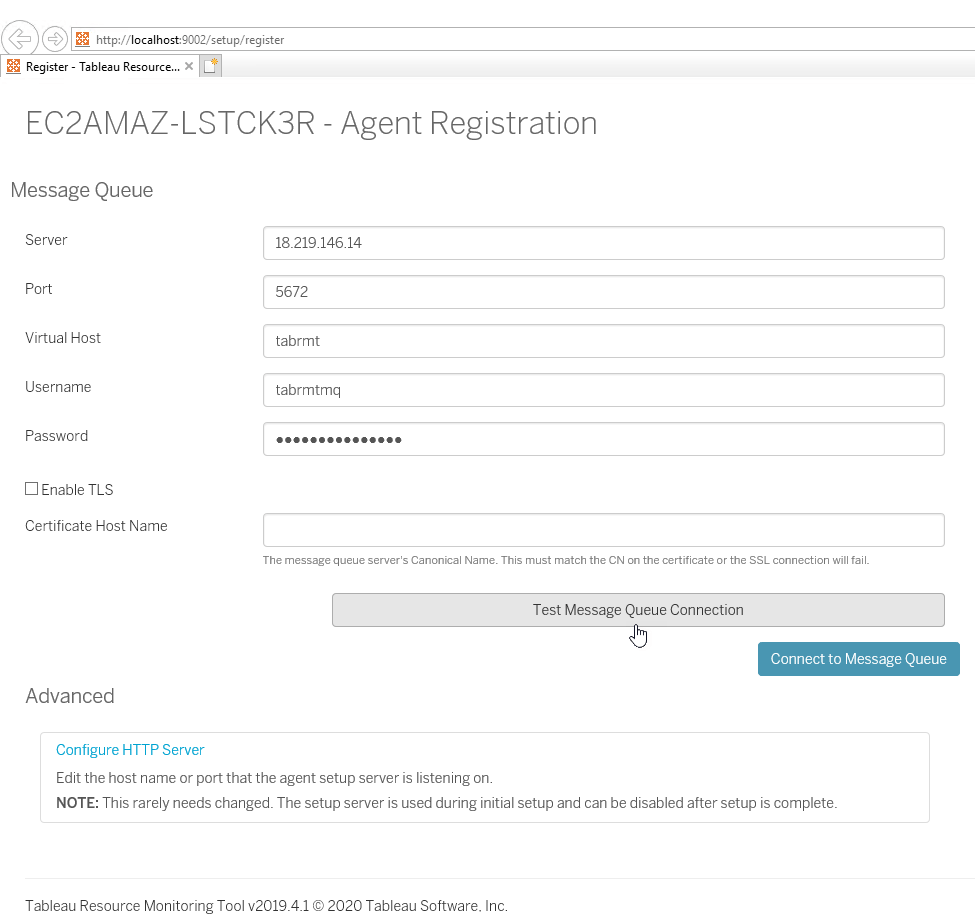
When Successful, click “Connect to Message Queue” button.
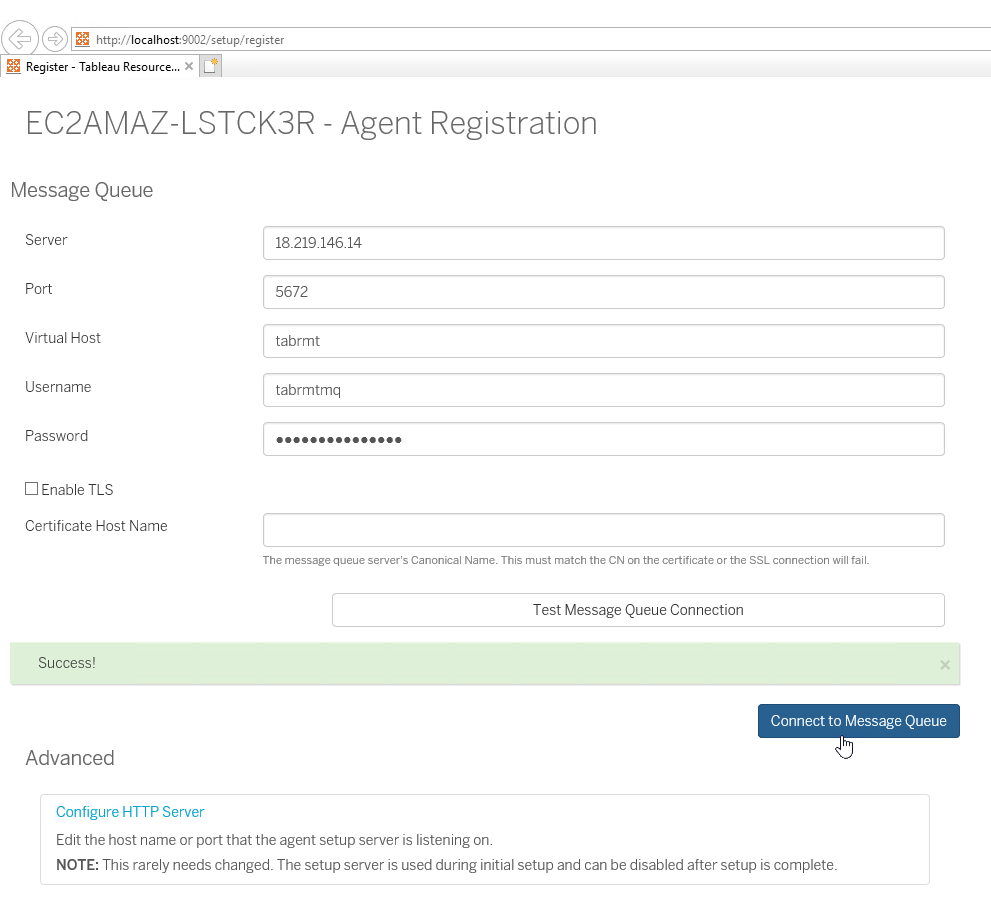
You will see below configuration webpage with most information already filled in.
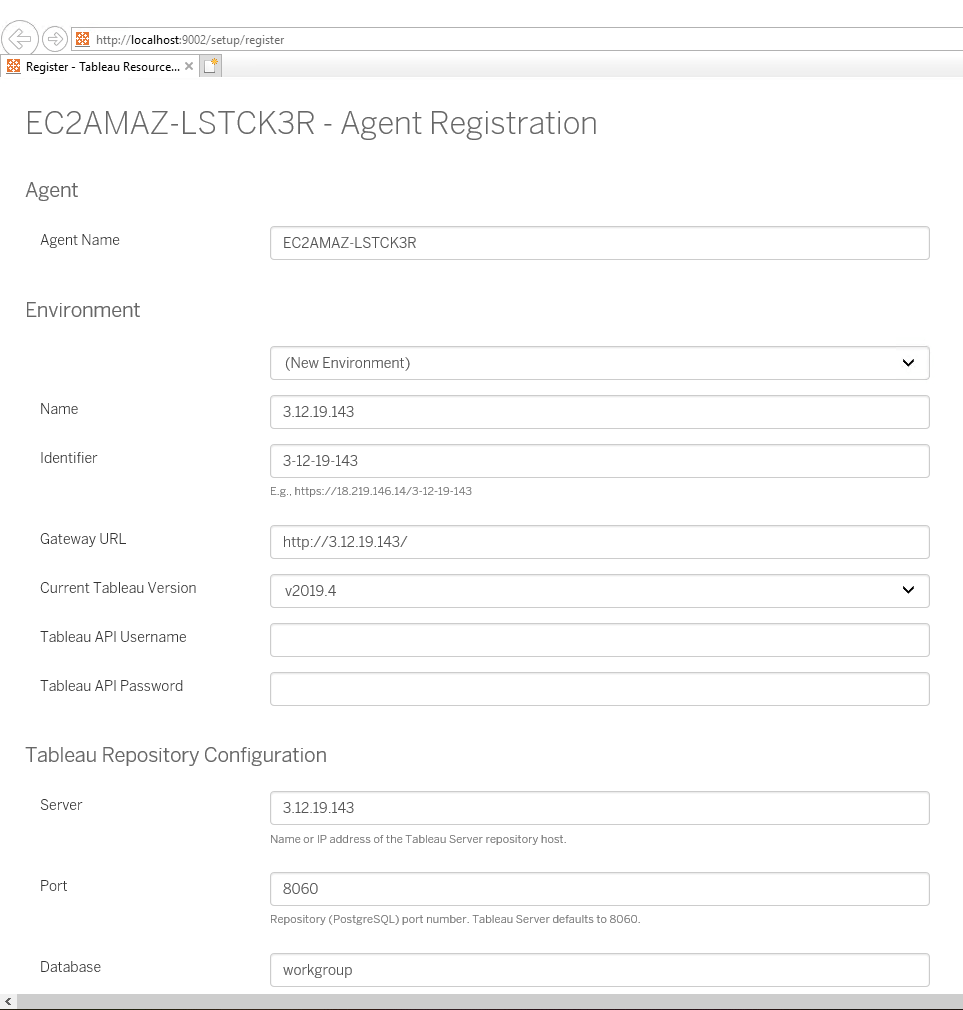
I change the Environment Name from IP Address to something more informative.
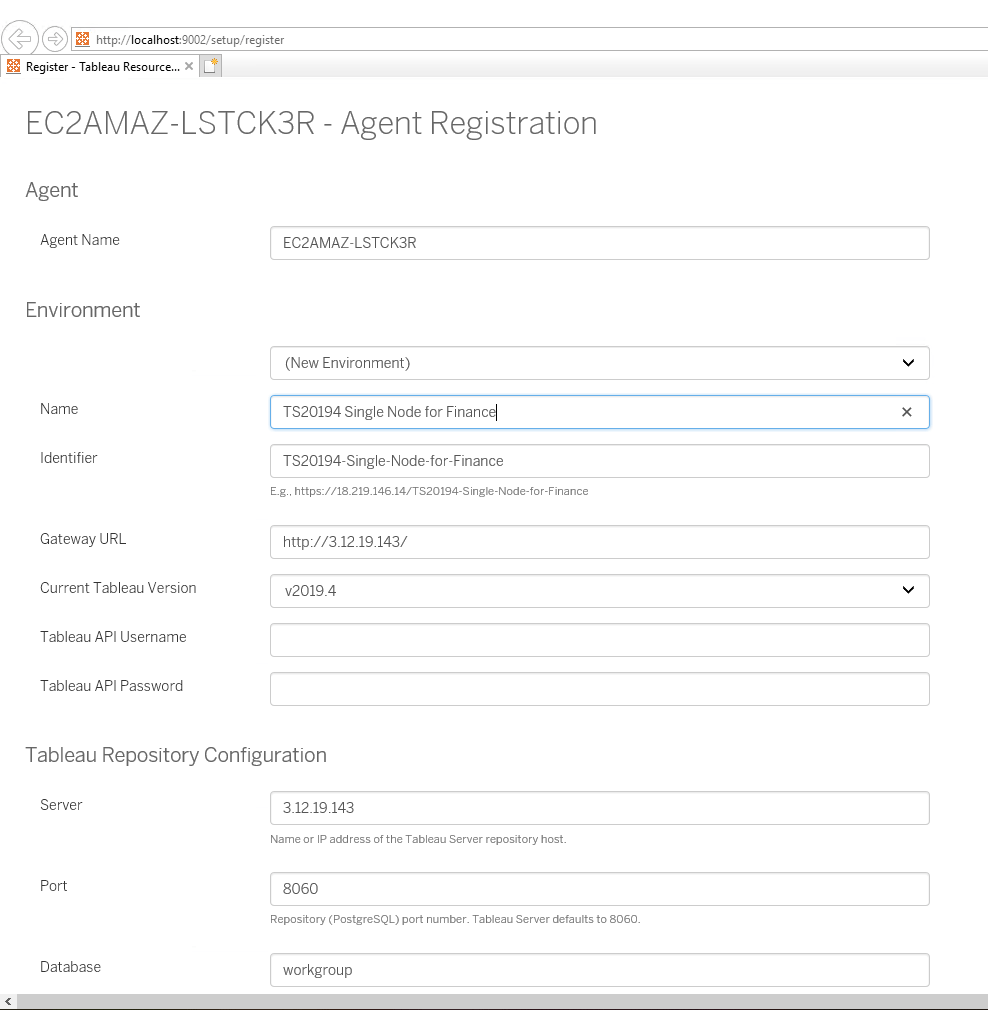
Then i fill in Tableau API Username & Tableau API Password with the username & password that i wanted.

At the Tableau Repository Configuration section, enter Tableau Repository Username (readonly) & Password (the password you chose when enabling access to Tableau Repository) so RMT Agent can access tableau server repository data. And i also changed the Description.
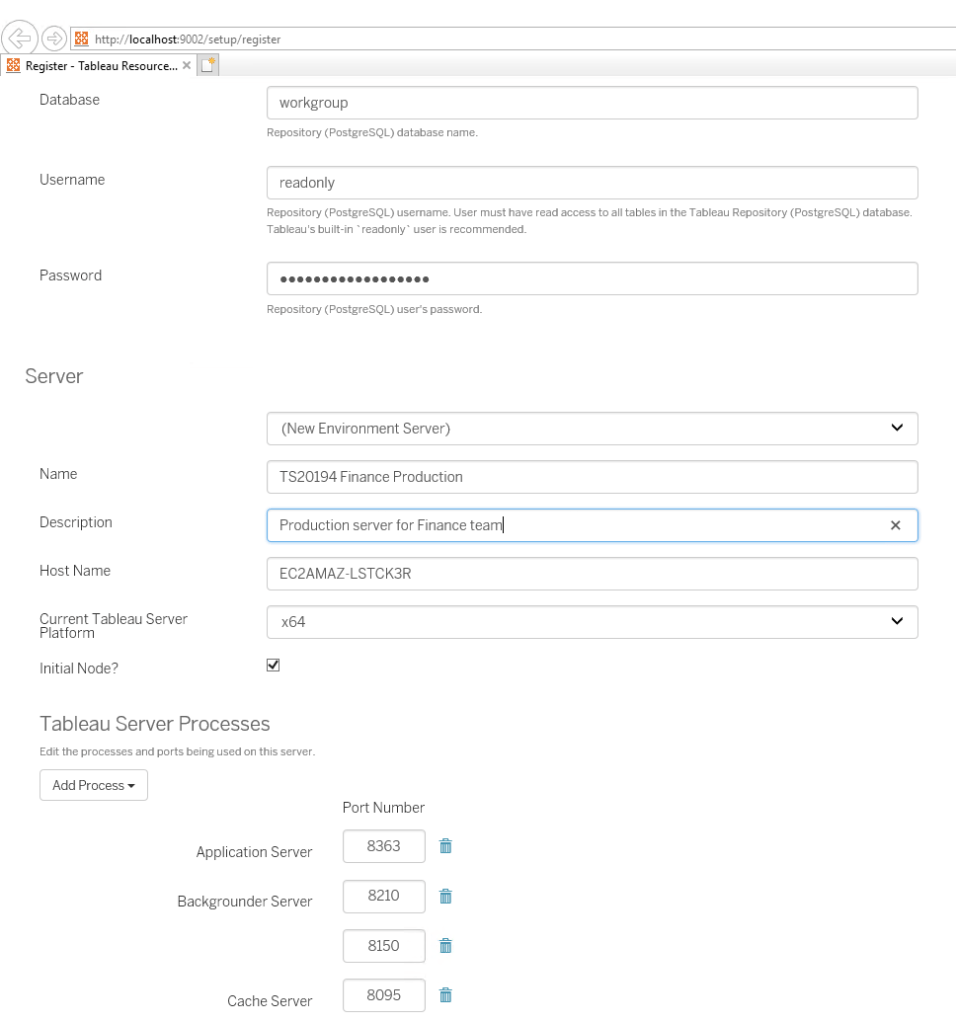
Change the other options when needed following your own environment configurations. I have nothing else to change so i scroll down and click “Register Agent” button.
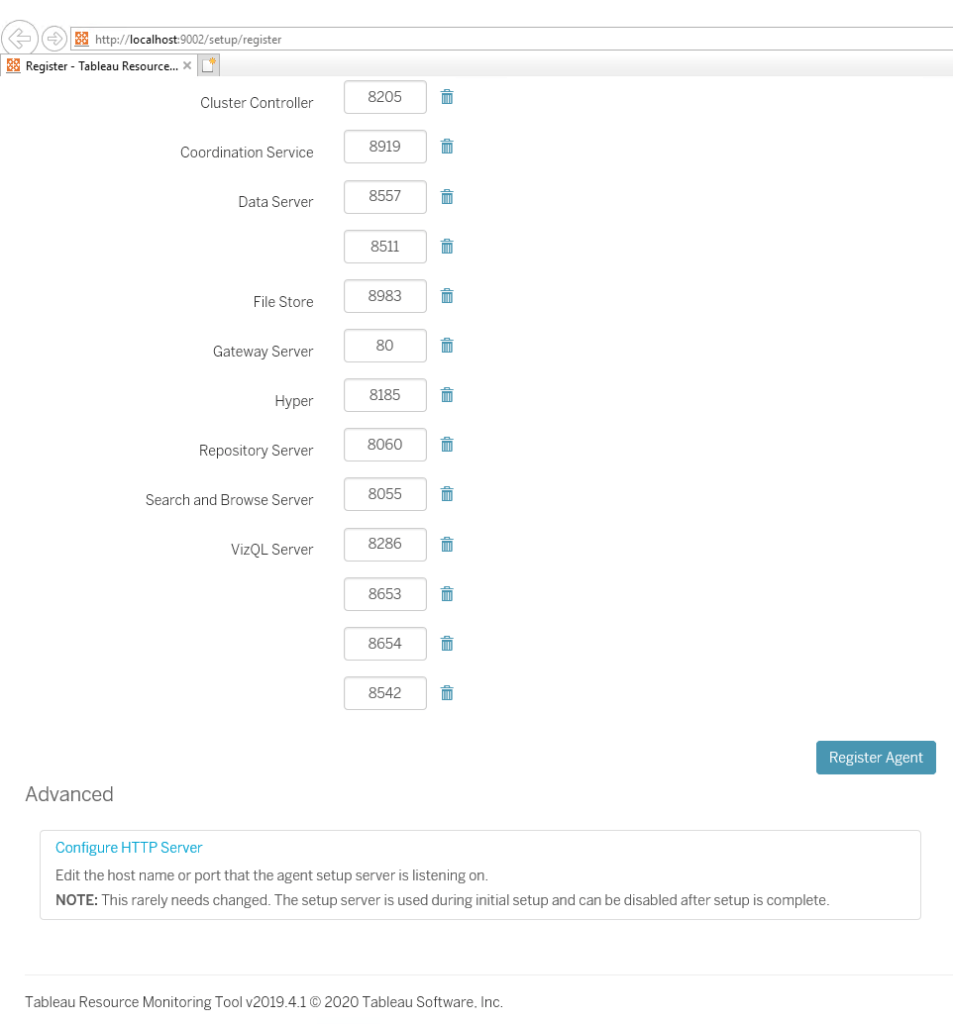
If everything is correct then you will see below Agent Setup Complete webpage. You also have an option to Disable Web Interface. I will disable the RMT Agent Web Interface in a Production environment because i don’t need it anymore and to free up server resources. But i don’t disable it now because this is my testing environment and i might need to access the RMT Agent Web Interface for testing purposes.

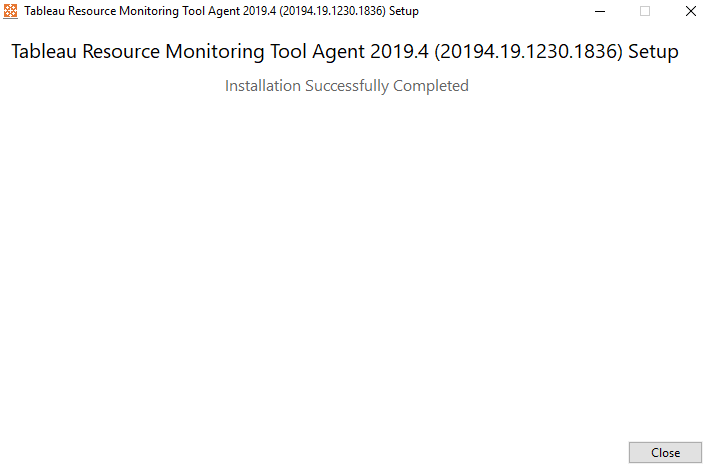
And click Close button at the RMT Agent Setup installer program.
Now login to RMT Master and you can see the Environment already added to the main page.

In the next blog post, i will show you Resource Monitoring Tool UI and features.
 Technology gems to share
[…] Tableau Resource Monitoring Tool – Agent Install Guide […]
LikeLiked by 1 person
[…] Check out RMT Agent install guide here. […]
LikeLiked by 1 person
[…] Tableau Resource Monitoring Tool – Agent Install Guide […]
LikeLiked by 1 person