
Tableau Server 2019.3 is out and it brings along a lot of new features like Explain Data, Data Catalog, Server Management Add-on, and many mores. Check out more details here.
Explain data is so cool, it really shows Tableau dedication to help everyone to see and understand data.
A lot of tableau server windows customers starting to migrate some of their workload to linux operating system. This install guide is for everyone coming from windows world that want to try using linux os but unsure on what to expect when installing it for the first time.
Disclaimer:
- only use Tableau Server on Linux when you have a Linux expert in your company who can help you in troubleshooting linux os errors.
- buy Red Hat Enterprise Linux subscription to get enterprise support from Red Hat.
- Single node Tableau Server on Linux performance won’t be much different with Tableau Server on Windows os. So keep using Windows os if you’re more familiar with it.
- You must have basic Linux skill-set to follow below guides
- This installation guide will only use Terminal / bash command lines, no GUI at all.
- You can also do below installation using ssh.
- You need a linux user login with sudo permission (don’t use root)
- You must meet all the minimum hardware requirements listed here to be able to install Tableau Server 2019.3. You can only install Tableau Server 2019.3 if you have a server with 64-bit Linux OS with a minimum of 4 physical CPU cores, 16 GB RAM, and 15 GB free disk space. Tableau Server 2019.3 installer will not start installation if you failed to meet any of these minimum requirements.
Pre-requisites
Check out the “before you install” requirements here.
Complete all the required requirements. Don’t skip anything.
For this guide i will use Centos 7.5.x and Tableau Server 2019.3.0 and i will use “Local Authentication”. I’m using “iniciam” linux user login who can run sudo commands.
So install Centos 7.3+ as per normal or follow your organization security policy and then do below terminal / bash command lines to fulfill the most important “before you install” requirements. Please fulfill the rest of the requirements if your organization need it.
[iniciam@centos7 ~]$ sudo yum update
 [sudo] password for iniciam:
 Loaded plugins: fastestmirror, langpacks
 Loading mirror speeds from cached hostfile
 base: mirror.newmediaexpress.com
 extras: mirror.newmediaexpress.com
 updates: mirror.newmediaexpress.com
 Resolving Dependencies
 --> Running transaction check
 ---> Package GeoIP.x86_64 0:1.5.0-11.el7 will be updated
 ---> Package GeoIP.x86_64 0:1.5.0-14.el7 will be an update
 --> Processing Dependency: geoipupdate for package: GeoIP-1.5.0-14.el7.x86_64
 …
 Installing : 32:bind-export-libs-9.11.4-9.P2.el7.x86_64                                                       196/1430
 Updating   : 2:nmap-ncat-6.40-19.el7.x86_64                                                                   197/1430
 Updating   : 1:mariadb-libs-5.5.64-1.el7.x86_64                                                               198/1430
 …
 Complete!

[iniciam@centos7 ~]$ sudo systemctl status sshd
 ● sshd.service - OpenSSH server daemon
    Loaded: loaded (/usr/lib/systemd/system/sshd.service; enabled; vendor preset: enabled)
    Active: active (running) since Mon 2019-09-23 15:43:39 +08; 48min ago
      Docs: man:sshd(8)
            man:sshd_config(5)
  Main PID: 14954 (sshd)
     Tasks: 1
    CGroup: /system.slice/sshd.service
            └─14954 /usr/sbin/sshd -D
 Sep 23 15:43:39 centos7.centos systemd[1]: Starting OpenSSH server daemon…
 Sep 23 15:43:39 centos7.centos sshd[14954]: Server listening on 0.0.0.0 port 22.
 Sep 23 15:43:39 centos7.centos sshd[14954]: Server listening on :: port 22.
 Sep 23 15:43:39 centos7.centos systemd[1]: Started OpenSSH server daemon.

[iniciam@centos7 ~]$ sudo gedit /etc/hostname /etc/hosts
 ** (gedit:79166): WARNING **: 16:33:05.476: Set document metadata failed: Setting attribute metadata::gedit-spell-language not supported
 ** (gedit:79166): WARNING **: 16:33:05.482: Set document metadata failed: Setting attribute metadata::gedit-encoding not supported
 ** (gedit:79166): WARNING **: 16:33:30.990: Set document metadata failed: Setting attribute metadata::gedit-spell-language not supported
 ** (gedit:79166): WARNING **: 16:33:30.995: Set document metadata failed: Setting attribute metadata::gedit-encoding not supported
 ** (gedit:79166): WARNING **: 16:33:35.613: Set document metadata failed: Setting attribute metadata::gedit-position not supported
 ** (gedit:79166): WARNING **: 16:33:35.629: Set document metadata failed: Setting attribute metadata::gedit-position not supported

[iniciam@centos7 ~]$ cat /etc/hostname
 ts20193.centos

[iniciam@centos7 ~]$ cat /etc/hosts
 127.0.0.1   localhost ts20193.centos localhost4 localhost4.localdomain4
 ::1         localhost localhost.localdomain localhost6 localhost6.localdomain6

[iniciam@centos7 ~]$ sudo firewall-cmd --list-all
 public (active)
   target: default
   icmp-block-inversion: no
   interfaces: eth0
   sources:
   services: dhcpv6-client ssh
   ports:
   protocols:
   masquerade: no
   forward-ports:
   source-ports:
   icmp-blocks:
   rich rules:

[iniciam@centos7 ~]$ sudo firewall-cmd --set-default-zone=public
 Warning: ZONE_ALREADY_SET: public
 success

[iniciam@centos7 ~]$ sudo firewall-cmd --permanent --add-port=80/tcp
 success

[iniciam@centos7 ~]$ sudo firewall-cmd --permanent --add-port=8850/tcp
 success

[iniciam@centos7 ~]$ sudo firewall-cmd --reload
 success

[iniciam@centos7 ~]$ sudo firewall-cmd --list-all
 public (active)
   target: default
   icmp-block-inversion: no
   interfaces: eth0
   sources:
   services: dhcpv6-client ssh
   ports: 80/tcp 8850/tcp
   protocols:
   masquerade: no
   forward-ports:
   source-ports:
   icmp-blocks:
   rich rules:

[iniciam@centos7 ~]$
Install Tableau Server 2019.3 using centos rpm file
Read full documentation here.
Download the installer from here.
I’m using Centos 7.5 so download the rpm file here and put it on your preferred folder. I put my rpm file in Downloads folder.
[iniciam@ts20193 ~]$ cd Downloads/

[iniciam@ts20193 Downloads]$ ls
 tableau-server-2019-3-0.x86_64.rpm

[iniciam@ts20193 Downloads]$ sudo yum install tableau-server-2019-3-0.x86_64.rpm
 [sudo] password for iniciam:
 Loaded plugins: fastestmirror, langpacks
 Examining tableau-server-2019-3-0.x86_64.rpm: tableau-server-20193.19.0913.2225-20193-19.0913.2225.x86_64
 Marking tableau-server-2019-3-0.x86_64.rpm to be installed
 Resolving Dependencies
 --> Running transaction check
 ---> Package tableau-server-20193.19.0913.2225.x86_64 0:20193-19.0913.2225 will be installed
 --> Processing Dependency: chrpath for package: tableau-server-20193.19.0913.2225-20193-19.0913.2225.x86_64
 Loading mirror speeds from cached hostfile
 base: mirror.newmediaexpress.com
 extras: mirror.newmediaexpress.com
 updates: mirror.newmediaexpress.com
 --> Processing Dependency: freeglut for package: tableau-server-20193.19.0913.2225-20193-19.0913.2225.x86_64
 --> Processing Dependency: redhat-lsb-core for package: tableau-server-20193.19.0913.2225-20193-19.0913.2225.x86_64
 --> Running transaction check
 ---> Package chrpath.x86_64 0:0.16-0.el7 will be installed
 ---> Package freeglut.x86_64 0:3.0.0-8.el7 will be installed
 ---> Package redhat-lsb-core.x86_64 0:4.1-27.el7.centos.1 will be installed
 --> Processing Dependency: redhat-lsb-submod-security(x86-64) = 4.1-27.el7.centos.1 for package: redhat-lsb-core-4.1-27.el7.centos.1.x86_64
 --> Processing Dependency: spax for package: redhat-lsb-core-4.1-27.el7.centos.1.x86_64
 --> Processing Dependency: /usr/bin/patch for package: redhat-lsb-core-4.1-27.el7.centos.1.x86_64
 --> Processing Dependency: /usr/bin/m4 for package: redhat-lsb-core-4.1-27.el7.centos.1.x86_64
 --> Running transaction check
 ---> Package m4.x86_64 0:1.4.16-10.el7 will be installed
 ---> Package patch.x86_64 0:2.7.1-11.el7 will be installed
 ---> Package redhat-lsb-submod-security.x86_64 0:4.1-27.el7.centos.1 will be installed
 ---> Package spax.x86_64 0:1.5.2-13.el7 will be installed
 --> Finished Dependency Resolution
 Dependencies Resolved
 ================================================================================================================================================================================
  Package                                              Arch                      Version                                Repository                                          Size
 Installing:
  tableau-server-20193.19.0913.2225                    x86_64                    20193-19.0913.2225                     /tableau-server-2019-3-0.x86_64                    3.5 G
 Installing for dependencies:
  chrpath                                              x86_64                    0.16-0.el7                             base                                                26 k
  freeglut                                             x86_64                    3.0.0-8.el7                            base                                               185 k
  m4                                                   x86_64                    1.4.16-10.el7                          base                                               256 k
  patch                                                x86_64                    2.7.1-11.el7                           base                                               110 k
  redhat-lsb-core                                      x86_64                    4.1-27.el7.centos.1                    base                                                38 k
  redhat-lsb-submod-security                           x86_64                    4.1-27.el7.centos.1                    base                                                15 k
  spax                                                 x86_64                    1.5.2-13.el7                           base                                               260 k
 Transaction Summary
 Install  1 Package (+7 Dependent packages)
 Total size: 3.5 G
 Total download size: 890 k
 Installed size: 3.5 G

Is this ok [y/d/N]: y
 Downloading packages:
 (1/7): chrpath-0.16-0.el7.x86_64.rpm                                                                                                                     |  26 kB  00:00:00
 (2/7): freeglut-3.0.0-8.el7.x86_64.rpm                                                                                                                   | 185 kB  00:00:00
 (3/7): redhat-lsb-submod-security-4.1-27.el7.centos.1.x86_64.rpm                                                                                         |  15 kB  00:00:00
 (4/7): patch-2.7.1-11.el7.x86_64.rpm                                                                                                                     | 110 kB  00:00:00
 (5/7): m4-1.4.16-10.el7.x86_64.rpm                                                                                                                       | 256 kB  00:00:00
 (6/7): redhat-lsb-core-4.1-27.el7.centos.1.x86_64.rpm                                                                                                    |  38 kB  00:00:00
 (7/7): spax-1.5.2-13.el7.x86_64.rpm                                                                                                                      | 260 kB  00:00:00
 Total                                                                                                                                           1.5 MB/s | 890 kB  00:00:00
 Running transaction check
 Running transaction test
 Transaction test succeeded
 Running transaction
   Installing : freeglut-3.0.0-8.el7.x86_64                                                                                                                                  1/8
   Installing : m4-1.4.16-10.el7.x86_64                                                                                                                                      2/8
   Installing : spax-1.5.2-13.el7.x86_64                                                                                                                                     3/8
   Installing : patch-2.7.1-11.el7.x86_64                                                                                                                                    4/8
   Installing : redhat-lsb-submod-security-4.1-27.el7.centos.1.x86_64                                                                                                        5/8
   Installing : redhat-lsb-core-4.1-27.el7.centos.1.x86_64                                                                                                                   6/8
   Installing : chrpath-0.16-0.el7.x86_64                                                                                                                                    7/8
   Installing : tableau-server-20193.19.0913.2225-20193-19.0913.2225.x86_64                                                                                                  8/8
 Creating /usr/lib64/libcrypt.so (a workaround for some RHEL 7-based installations)
 If this is a single node or initial node installation, run:
 sudo /opt/tableau/tableau_server/packages/scripts.20193.19.0913.2225/initialize-tsm --accepteula
 to continue setting up Tableau Server. If this installation is part of a multi-node configuration,
 see the online documentation for installing Tableau Server on additional nodes.
 Verifying  : chrpath-0.16-0.el7.x86_64                                                                                                                                    1/8
   Verifying  : tableau-server-20193.19.0913.2225-20193-19.0913.2225.x86_64                                                                                                  2/8
   Verifying  : redhat-lsb-submod-security-4.1-27.el7.centos.1.x86_64                                                                                                        3/8
   Verifying  : patch-2.7.1-11.el7.x86_64                                                                                                                                    4/8
   Verifying  : spax-1.5.2-13.el7.x86_64                                                                                                                                     5/8
   Verifying  : redhat-lsb-core-4.1-27.el7.centos.1.x86_64                                                                                                                   6/8
   Verifying  : m4-1.4.16-10.el7.x86_64                                                                                                                                      7/8
   Verifying  : freeglut-3.0.0-8.el7.x86_64                                                                                                                                  8/8
 Installed:
   tableau-server-20193.19.0913.2225.x86_64 0:20193-19.0913.2225
 Dependency Installed:
   chrpath.x86_64 0:0.16-0.el7                      freeglut.x86_64 0:3.0.0-8.el7                               m4.x86_64 0:1.4.16-10.el7      patch.x86_64 0:2.7.1-11.el7
   redhat-lsb-core.x86_64 0:4.1-27.el7.centos.1     redhat-lsb-submod-security.x86_64 0:4.1-27.el7.centos.1     spax.x86_64 0:1.5.2-13.el7

Complete!
initialize tsm
[iniciam@ts20193 Downloads]$ cd /opt/tableau/tableau_server/packages/scripts.20193.19.0913.2225/

[iniciam@ts20193 scripts.20193.19.0913.2225]$ ls -al
 total 200
 drwxr-xr-x.  2 root root  4096 Sep 23 16:55 .
 drwxr-xr-x. 66 root root  4096 Sep 23 16:56 ..
 -rwxr-xr-x.  1 root root  3341 Sep 14 17:55 after-install
 -rw-r--r--.  1 root root 30518 Sep 14 17:55 after-install-common
 -rwxr-xr-x.  1 root root  1891 Sep 14 17:55 before-remove
 -rw-r--r--.  1 root root   125 Sep 14 17:55 config.json
 -rw-r--r--.  1 root root   355 Sep 14 17:55 defaults.bash
 -rwxr-xr-x.  1 root root  3099 Sep 14 17:55 disable-coordination-service-authentication
 -rwxr-xr-x.  1 root root 20885 Sep 14 17:55 initialize-tsm
 -rw-r--r--.  1 root root 20109 Sep 14 17:55 initialize-tsm-common
 -rw-r--r--.  1 root root  2900 Sep 14 17:55 local-configuration
 -rwxr-xr-x.  1 root root  6718 Sep 14 17:55 migrate-to-single-user
 -rwxr-xr-x.  1 root root  4072 Sep 14 17:55 move-tsm-controller
 -rw-r--r--.  1 root root   201 Sep 14 17:55 README
 -rwxr-xr-x.  1 root root  2799 Sep 14 17:55 stack-traces-from-coredumps
 -rwxr-xr-x.  1 root root  1553 Sep 14 17:55 start-administrative-services
 -rwxr-xr-x.  1 root root  2633 Sep 14 17:55 stop-administrative-services
 -rw-r--r--.  1 root root 11690 Sep 14 17:55 tabcmd.autocomplete
 -rwxr-xr-x.  1 root root  8033 Sep 14 17:55 tableau-server-obliterate
 -rw-r--r--.  1 root root 25728 Sep 14 17:55 tsm.autocomplete
 -rwxr-xr-x.  1 root root  8405 Sep 14 17:55 upgrade-tsm
 -rw-r--r--.  1 root root   681 Sep 14 17:55 user-at.service

[iniciam@ts20193 scripts.20193.19.0913.2225]$ sudo ./initialize-tsm --accepteula
 Creating 'tsmadmin' group for TSM admin authorization
 Creating 'tableau' unprivileged user account
 Creating directories and setting permissions…
 Using '/var/opt/tableau/tableau_server' as the data directory.
 Adding user 'iniciam' to group 'tableau'…
 Adding user 'iniciam' to group 'tsmadmin'…
 Added. Note: These group membership changes do not take effect in shells already open. For these to take effect, log out of the shell and log back in.
 Tableau Server runs best with at least 50 GB of free disk space,
 but found only 42 GB for the data directory '/var/opt/tableau/tableau_server'. Continuing.
 Creating environment file…
 Starting TSM services…
 Updating repository version in Tableau Server Coordination Service.
 TSM services started successfully

Use the 'tsm' command to continue setting up Tableau Server.
 Tableau binary directory will be added to PATH for new shells.

To get the updated path, either start a new session, or for bash users run:
     source /etc/profile.d/tableau_server.sh

The TSM administrative web interface (and REST API) is now available at
     https://ts20193.centos:8850

You can continue the configuration and initialization of Tableau server using either the TSM command line interface, or the web interface.

You will be prompted to authenticate, or can log in using the username 'iniciam', with the same password you used to log into this session. You could also use any username, with its password, from the administrative group in the domain.

Done.

[iniciam@ts20193 scripts.20193.19.0913.2225]$ source /etc/profile.d/tableau_server.sh
Activate real license key or use 14-days trial license
[iniciam@ts20193 scripts.20193.19.0913.2225]$ tsm licenses activate -t
 Trial activated.
create registration json file from template
[iniciam@ts20193 scripts.20193.19.0913.2225]$ pwd
 /opt/tableau/tableau_server/packages/scripts.20193.19.0913.2225

[iniciam@ts20193 scripts.20193.19.0913.2225]$ cd ~

[iniciam@ts20193 ~]$ ls
 Desktop  Documents  Downloads  Music  Pictures  Public  Templates  Videos

[iniciam@ts20193 ~]$ tsm register --template > /home/iniciam/Desktop/tsregistration.json

[iniciam@ts20193 ~]$ cd Desktop/

[iniciam@ts20193 Desktop]$ ls
 tsregistration.json

[iniciam@ts20193 Desktop]$ cat tsregistration.json
 {
   "zip" : "[value]",
   "country" : "[value]",
   "city" : "[value]",
   "last_name" : "[value]",
   "industry" : "[value]",
   "eula" : "[value]",
   "title" : "[value]",
   "phone" : "[value]",
   "company" : "[value]",
   "state" : "[value]",
   "department" : "[value]",
   "first_name" : "[value]",
   "email" : "[value]"
 }

[iniciam@ts20193 Desktop]$ gedit tsregistration.json

[iniciam@ts20193 Desktop]$ cat tsregistration.json
 {
   "zip" : "189767",
   "country" : "singapore",
   "city" : "singapore",
   "last_name" : "yourlastname",
   "industry" : "yourindustry",
   "eula" : "yes",
   "title" : "yourtitle",
   "phone" : "67685000",
   "company" : "companyname",
   "state" : "singapore",
   "department" : "sales",
   "first_name" : "yourfirstname",
   "email" : "youremail@example.com"
 }
register using your own registration json file
[iniciam@ts20193 Desktop]$ tsm register --file /home/iniciam/Desktop/tsregistration.json

Registration complete.
create authentication json file
Tableau support many Authentication methods like Local, Active Directory, LDAP, etc.
Read the details here.
Choose your authentication method and create the Authentication JSON file using the template here.
I’m using local authentication.
[iniciam@ts20193 Desktop]$ gedit localauthentication.json

[iniciam@ts20193 Desktop]$ cat localauthentication.json
 {
  "configEntities": {
    "identityStore": {
      "_type": "identityStoreType",
      "type": "local"
      }
    }
 }
Import the authentication json file using tsm
[iniciam@ts20193 Desktop]$ tsm settings import -f localauthentication.json
apply all changes and wait
[iniciam@ts20193 Desktop]$ tsm pending-changes apply
 Starting deployments asynchronous job.
 Job id is '0', timeout is 10 minutes.
 6% - Retrieving the topology to deploy.
 13% - Retrieving the configuration to deploy.
 20% - Validating the new topology.
 26% - Determining if server needs to be started.
 33% - Disabling all services.
 40% - Waiting for the services to stop.
 46% - Updating nodes to new topology.
 53% - Waiting for topology to be applied.
 60% - Updating nodes to new configuration.
 66% - Disabling all services.
 73% - Waiting for the services to stop.
 80% - Reconfiguring services.
 86% - Waiting for services to reconfigure.
 93% - Enabling all services.
 100% - Waiting for the services to start.

Successfully deployed nodes with updated configuration and topology version.
initialize tableau server and start it
[iniciam@ts20193 Desktop]$ tsm initialize --start-server --request-timeout 1800
 Initializing the server…
 Job id is '1', timeout is 30 minutes.
 3% - Validating that there are no pending changes.
 6% - Generating passwords.
 10% - Generating search server ssl certificate.
 13% - Generating Elastic Server SSL certificate.
 17% - Generating key store.
 20% - Promoting configuration.
 24% - Waiting for services to reconfigure.
 27% - Generating new asset key.
 31% - Saving asset key.
 34% - Initializing the topology.
 37% - Waiting for the maintenance app to start.
 41% - Initializing the temporary database instance.
 44% - Starting the temporary database instance.
 48% - Creating roles and databases.
 51% - Running migrations.
 55% - Localizing the default projects.
 58% - Stopping the temporary database instance.
 62% - Making the temporary database default.
 65% - Initializing the next active repository.
 68% - Enabling services needed for server initialization.
 72% - Connecting to the Backup/Restore service.
 75% - Saving asset key metadata.
 79% - Configuring search server.
 82% - Connecting to the Backup/Restore service.
 86% - Initializing Elastic Server.
 89% - Finalizing the topology.
 93% - Connecting to Vizportal Maintenance.
 96% - Rebuilding the search index.
 100% - Finalizing the initialization.

Server was initialized successfully.
create server administrator user
[iniciam@ts20193 Desktop]$ tabcmd initialuser --server localhost:80 --username 'serveradmin'
 Password:
 ===== redirecting to http://localhost/auth
 ===== Signed out
 ===== Creating new session
 =====     Server:   http://localhost:80
 =====     Username: serveradmin
 ===== Connecting to the server…
 ===== Signing in…
 ===== Succeeded
Check tableau server status
[iniciam@ts20193 Desktop]$ tsm status -v
 node1: localhost
         Status: RUNNING
         'Tableau Server Gateway 0' is running.
         'Tableau Server Application Server 0' is running.
         'Tableau Server Interactive Microservice Container 0' is running.
         'Relationship Query Microservice 0' is running.
         'Content Model Microservice 0' is running.
         'Tableau Server VizQL Server 0' is running.
         'Tableau Server Cache Server 0' is running.
         'Tableau Server Coordination Service 0' is running.
         'Tableau Server Cluster Controller 0' is running.
         'Tableau Server Search And Browse 0' is running.
         'Tableau Server Backgrounder 0' is running.
         'Tableau Server Non-Interactive Microservice Container 0' is running.
         'Relationship Ingestor Microservice 0' is running.
         'External Content Provider Microservice 0' is running.
         'Content Provider Microservice 0' is running.
         'Flow Provider Microservice 0' is running.
         'Tableau Server Data Server 0' is running.
         'Tableau Server Data Engine 0' is running.
         'Tableau Server File Store 0' is running.
         'Tableau Server Repository 0' is running (Active Repository).
         'Tableau Server Tableau Prep Conductor 0' is running.
         'Tableau Server Elastic Server 0' is running.
         'Tableau Server Ask Data 0' is running.
         'Tableau Server Administration Agent 0' is running.
         'Tableau Server Administration Controller 0' is running.
         'Tableau Server License Manager 0' is running.
         'Tableau Server Client File Service 0' is running.
         'Tableau Server Database Maintenance 0' is stopped.
         'Tableau Server Backup/Restore 0' is stopped.
         'Tableau Server Site Import/Export 0' is stopped.
         'Tableau Server SAML Service 0' is stopped.
(OPTIONAL) enable TABLEAU DATA CATALOG manually
If you buy Tableau Server – Data Management Add-on you will get access to Tableau Data Catalog & Prep Conductor. Prep Conductor service is enabled by default when you start Tableau Server but Data Catalog is not enabled by default.
So you need to enable it manually once after you finishing Tableau Server installation by using below tsm command.
[iniciam@ts20193 Desktop]$ tsm maintenance metadata-services enable

When enabling this option, some services used by Tableau Server must be restarted. This will make some functionality on Tableau Server temporarily unavailable. Do you want to continue?

(y/n): y

 Job id is '2', timeout is 10 minutes.
 11% - Checking if required services to create the Metadata API Store are running.
 22% - Stopping Metadata API Store related services.
 33% - Enabling the maintenance app.
 44% - Waiting for the maintenance app to start.
 55% - Disabling database services.
 66% - Waiting for database services to disable.
 77% - Recreating Metadata API Store.
 88% - Setting Metadata API Store related settings.
 100% - Starting Metadata API Store related services.

Metadata API Store was created successfully.
check if everything runs perfectly
[iniciam@ts20193 Desktop]$ tsm status -v
 node1: localhost

Status: RUNNING
'Tableau Server Gateway 0' is running.
'Tableau Server Application Server 0' is running.
'Tableau Server Interactive Microservice Container 0' is running.
'Relationship Query Microservice 0' is running.
'Content Model Microservice 0' is running.
'Tableau Server VizQL Server 0' is running.
'Tableau Server Cache Server 0' is running.
'Tableau Server Coordination Service 0' is running.
'Tableau Server Cluster Controller 0' is running.
'Tableau Server Search And Browse 0' is running.
'Tableau Server Backgrounder 0' is running.
'Tableau Server Non-Interactive Microservice Container 0' is running.
'Relationship Ingestor Microservice 0' is running.
'External Content Provider Microservice 0' is running.
'Content Provider Microservice 0' is running.
'Flow Provider Microservice 0' is running.
'Tableau Server Data Server 0' is running.
'Tableau Server Data Engine 0' is running.
'Tableau Server File Store 0' is running.
'Tableau Server Repository 0' is running (Active Repository).
'Tableau Server Tableau Prep Conductor 0' is running.
'Tableau Server Elastic Server 0' is running.
'Tableau Server Ask Data 0' is running.
'Tableau Server Administration Agent 0' is running.
'Tableau Server Administration Controller 0' is running.
'Tableau Server License Manager 0' is running.
'Tableau Server Client File Service 0' is running.
'Tableau Server Database Maintenance 0' is stopped.
'Tableau Server Backup/Restore 0' is stopped.
'Tableau Server Site Import/Export 0' is stopped.
'Tableau Server SAML Service 0' is stopped.

[iniciam@ts20193 Desktop]$
Everything runs perfectly.
login to tableau server and open some samples


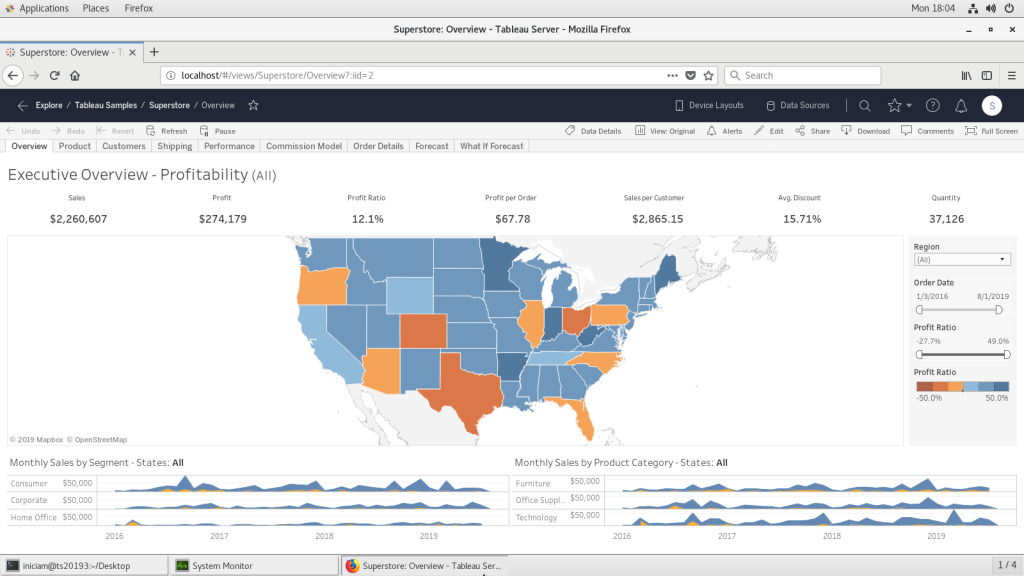
Check out 2019.3 new features


Enjoy today friends.


[…] https://gemshare.org/2019/09/26/install-tableau-server-20193-centos75/ […]
LikeLike